Insecure Data Storage on Android and iOS: Detection and Fixes
Tokens in UserDefaults, SharedPreferences, or AsyncStorage are a top mobile finding. How to detect insecure data storage and fix it on every platform.
The security questionnaire arrives two weeks before your enterprise deal closes. Question 14 reads: “Describe how authentication tokens and sensitive user data are stored on the device.” Your mobile lead opens the codebase to write an answer and finds the refresh token sitting in UserDefaults on iOS and in AsyncStorage in the React Native checkout module. Nobody wrote it that way on purpose. It was the fastest path during the MVP sprint, and it has shipped in every release since.
This is one of the most common findings in mobile security reviews. It is also one of the easiest to fix once you know where to look. This guide covers why it happens, what the standards say, and how to detect and fix it on iOS, Android, Flutter, and React Native.
Why Insecure Data Storage Keeps Shipping
Every mobile platform gives developers a simple key-value store. On iOS it is UserDefaults. On Android it is SharedPreferences. In React Native it is AsyncStorage, and in Flutter it is the shared_preferences package. They have clean APIs, they work right away, and they are documented in every tutorial.
None of them are meant for secrets.
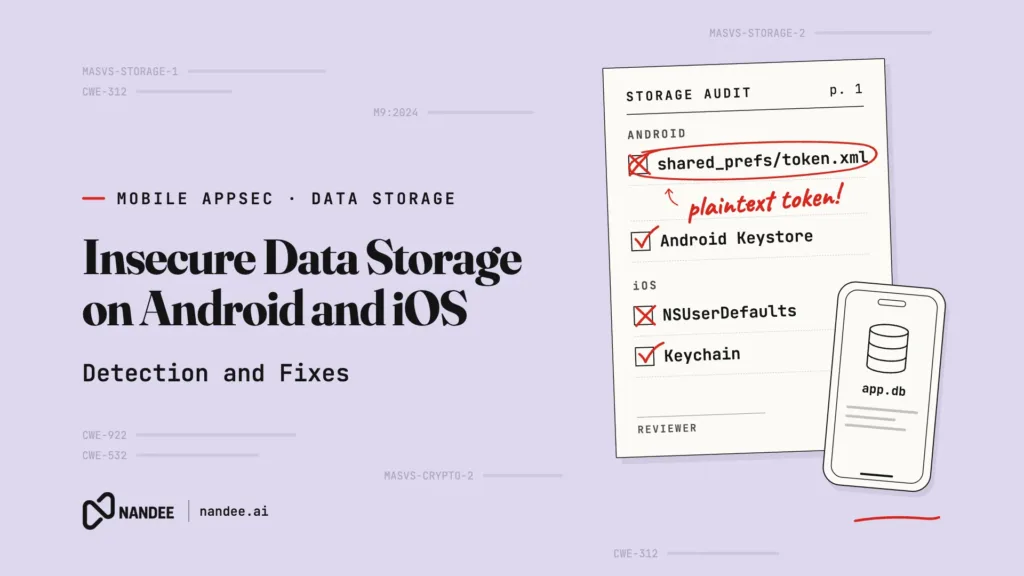
UserDefaults writes a plist to the app’s Library/Preferences directory. SharedPreferences writes an XML file to /data/data/<package>/shared_prefs/. AsyncStorage stores data unencrypted, backed by SQLite or files depending on platform and version. All of these sit inside the app sandbox, and the sandbox is a real protection, but it is not encryption. A rooted or jailbroken device, a forensic extraction, a device backup, or a malicious app exploiting a separate vulnerability can all reach that data.
Backups deserve special attention. On Android, Auto Backup includes SharedPreferences files by default unless you exclude them. On iOS, UserDefaults is included in device backups. A token that is “only on the device” may also be in a cloud backup or on a laptop.
What the Standards Say
OWASP MASVS v2 covers this under the MASVS-STORAGE control group. MASVS-STORAGE-1 requires that the app store sensitive data securely. MASVS-STORAGE-2 requires that it prevent sensitive data from leaking through logs, backups, the clipboard, and similar channels. The OWASP MASTG provides test procedures for both, including checks on local storage, backups, and logs on each platform. Insecure data storage is also M9 on the OWASP Mobile Top 10 (2024).
The relevant CWEs are:
- CWE-312: Cleartext Storage of Sensitive Information
- CWE-922: Insecure Storage of Sensitive Information
- CWE-532: Insertion of Sensitive Information into Log File
If you are in fintech or healthcare, these map directly to the questions auditors and enterprise buyers ask. “Where are tokens stored, and are they protected by hardware-backed encryption?” is a question you want to answer in one sentence, not one week.
What Counts as Sensitive
Before fixing storage, decide what needs protecting. For most apps the list includes access and refresh tokens, session cookies, API keys issued to the user, PII (names, emails, account numbers, addresses), PHI in healthcare apps, and anything that would let an attacker impersonate a user or reconstruct their activity.
Feature flags, UI preferences, and onboarding state can stay in the simple key-value store. The goal is not to encrypt everything. The goal is to put secrets where the platform’s hardware-backed protections apply.
Fixing It on iOS: Keychain, Not UserDefaults
Here is the pattern that shows up in reviews:
// Vulnerable: CWE-312. Token stored in a plaintext plist that is included in backups.
UserDefaults.standard.set(accessToken, forKey: "access_token")
The fix is to use the Keychain with an explicit accessibility class:
import Foundation
import Security

struct KeychainError: Error { let status: OSStatus }

enum TokenStore {
    private static let service = Bundle.main.bundleIdentifier ?? "app.auth"

    static func save(_ token: String, account: String = "access_token") throws {
        let query: [String: Any] = [
            kSecClass as String: kSecClassGenericPassword,
            kSecAttrService as String: service,
            kSecAttrAccount as String: account
        ]
        SecItemDelete(query as CFDictionary)

        var attributes = query
        attributes[kSecValueData as String] = Data(token.utf8)
        attributes[kSecAttrAccessible as String] = kSecAttrAccessibleWhenUnlockedThisDeviceOnly

        let status = SecItemAdd(attributes as CFDictionary, nil)
        guard status == errSecSuccess else { throw KeychainError(status: status) }
    }
}
The accessibility class matters. kSecAttrAccessibleWhenUnlockedThisDeviceOnly keeps the item encrypted while the device is locked and prevents it from moving to another device through a backup restore. If you need background access (for example, refreshing a token in a background task), use kSecAttrAccessibleAfterFirstUnlockThisDeviceOnly and document why.
Fixing It on Android: Keystore-Backed Encryption
On Android, the equivalent mistake looks like this:
// Vulnerable: CWE-312. Token written as plaintext XML under shared_prefs/.
prefs.edit().putString("refresh_token", refreshToken).apply()
The durable fix is to encrypt sensitive values with a key held in the Android Keystore, ideally hardware-backed, before writing them anywhere. Many teams used Jetpack Security’s EncryptedSharedPreferences for this. That library has since been deprecated, so for new code, use a Keystore-backed key directly or a maintained library such as Tink, and store the ciphertext in DataStore or a file.
Also exclude sensitive files from backups. On Android 12 and later, use dataExtractionRules:
<!-- res/xml/data_extraction_rules.xml -->
<data-extraction-rules>
    <cloud-backup>
        <exclude domain="sharedpref" path="auth_prefs.xml"/>
    </cloud-backup>
    <device-transfer>
        <exclude domain="sharedpref" path="auth_prefs.xml"/>
    </device-transfer>
</data-extraction-rules>
Reference it from the <application> element with android:dataExtractionRules, and keep android:fullBackupContent rules in place for older OS versions.
Fixing It in React Native and Flutter
React Native code tends to look like this:
// Vulnerable: CWE-922. AsyncStorage is not encrypted.
import AsyncStorage from '@react-native-async-storage/async-storage';

await AsyncStorage.setItem('refreshToken', refreshToken);
The fix is a library that wraps the native Keychain and Keystore, such as react-native-keychain (or expo-secure-store in Expo apps):
import * as Keychain from 'react-native-keychain';

const SERVICE = 'com.example.auth';

export async function saveRefreshToken(token: string): Promise<void> {
  await Keychain.setGenericPassword('refreshToken', token, {
    service: SERVICE,
    accessible: Keychain.ACCESSIBLE.WHEN_UNLOCKED_THIS_DEVICE_ONLY,
  });
}

export async function readRefreshToken(): Promise<string | null> {
  const creds = await Keychain.getGenericPassword({ service: SERVICE });
  return creds ? creds.password : null;
}
Flutter has the same split. shared_preferences is for preferences, and flutter_secure_storage is for secrets, since it uses the Keychain on iOS and Keystore-backed encryption on Android.
Do Not Forget the Migration
Fixing the code only protects new writes. Every existing user still has the old plaintext value on their device. Ship a one-time migration on app launch: read the old value, write it to secure storage, confirm the write, then delete the original.
export async function migrateLegacyToken(): Promise<void> {
  const legacy = await AsyncStorage.getItem('refreshToken');
  if (!legacy) return;
  await saveRefreshToken(legacy);
  await AsyncStorage.removeItem('refreshToken');
}
If the token is long-lived, consider rotating it server-side after migration so that any copies already sitting in backups stop working.
How to Detect Insecure Storage This Week
You do not need a new tool to start. Here is a workflow any team can run in an afternoon.
Search the codebase. Grep for UserDefaults, SharedPreferences, AsyncStorage, shared_preferences, NSUserDefaults, and getSharedPreferences. Review every write and ask whether the value is sensitive.
Check your logs. Search for print, NSLog, Log.d, console.log, and debugPrint near auth code. Tokens in logs are a CWE-532 finding and a common way secrets leak into crash reporting tools.
Inspect a real build. On Android, use adb shell run-as <package> on a debuggable build to list shared_prefs/. On iOS, inspect the simulator’s app container under Library/Preferences. Seeing your own token in plaintext tends to settle debates quickly.
Review backup configuration. Confirm dataExtractionRules and fullBackupContent on Android, and confirm Keychain accessibility classes on iOS.
Add a CI check. A simple lint rule or Semgrep pattern that flags sensitive-looking key names (token, secret, password, ssn) written to plain key-value stores will catch regressions before review.
Write the answer for the auditor now. One paragraph describing where secrets live, how they are encrypted, and how backups are handled. You will be asked again.
Where This Breaks Down at Scale
The checklist works. The problem is keeping it working. A team shipping weekly across iOS, Android, and a shared React Native or Flutter layer adds new storage calls constantly. Grep finds candidates, but someone still has to decide which ones matter, write the fix in the right language, and handle the migration. Scanners that flag every SharedPreferences call, including harmless ones, train teams to ignore the noise. Real findings then surface days before release, when there is no time to fix them properly.
How Nandee Automates This
Nandee is an AI Mobile Application Security Engineer that turns this checklist into one continuous workflow.
Scan. Nandee performs SAST, DAST, and SCA/OSS analysis across native iOS, native Android, Flutter, and React Native apps. That covers insecure storage in your own code, how the running app behaves, and vulnerable third-party libraries in one pass.
Triage. AI Triage removes false positives and ranks what remains by exploitability. Instead of hundreds of storage warnings, your team sees the findings that actually put tokens, PII, or PHI at risk, so the work goes where it matters.
Fix. The Green Agent writes the code fix in the language the finding lives in: Swift, Kotlin, Dart for Flutter, or JS/TS for React Native. Your developers review a proposed change instead of starting from a ticket.
Verify. The Red Agent provides AI pentesting to probe your app the way an attacker would. When you need human depth for a launch, an audit, or a high-stakes release, Nandee’s expert-led manual pentesting covers mobile and web apps. For healthcare teams, Nandee signs BAAs.
Scan, triage, and fix happen in one place. That means insecure storage gets caught and fixed while the code is fresh, not discovered the week your release or your enterprise deal is on the line.
Stop Answering Question 14 From Scratch
Insecure data storage is a solved problem on every platform. What is not solved for most teams is catching it on every release without burning a week of engineering time. Nandee makes that continuous, so the next security questionnaire is a quick answer, not a scramble.
Start a scan or book a demo at nandee.ai and see what your current build is storing. Then pick the plan that keeps every future release secure by default.